XML to FCPXML
XML to FCPXML icon

Premiere Pro timelines
in Final Cut Pro

Drop the XML you exported from Premiere, get an FCPXML that opens in Final Cut Pro — with titles that are still titles, and clips that relink.

macOS 14 or later · Apple silicon and Intel · one-time purchase

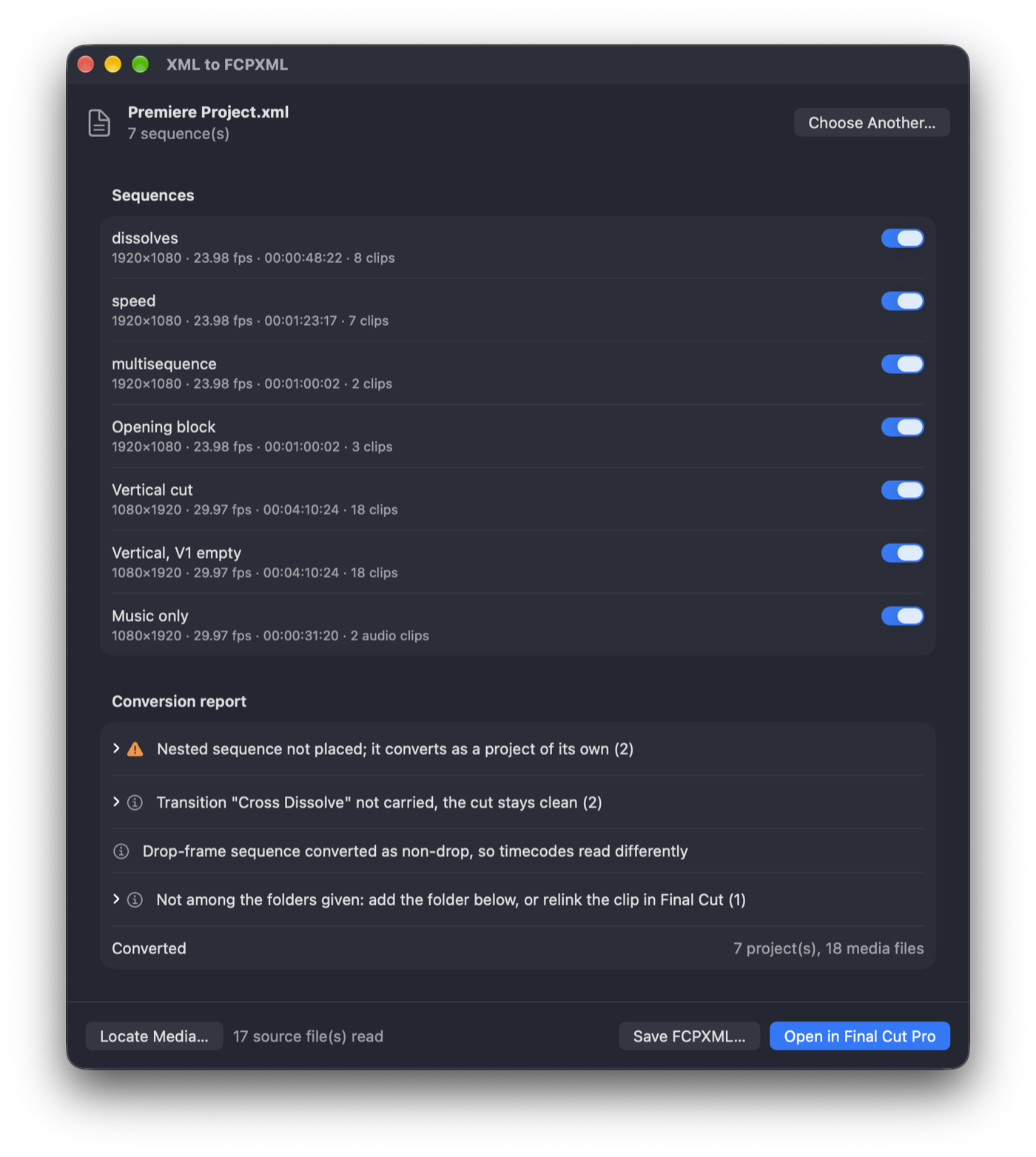
The app with a converted Premiere project: sequences, and a report of what to check before importing

What it does differently

Getting the cuts across is the easy part. These are the parts that usually have to be fixed by hand afterwards.

Titles stay titles

Essential Graphics text arrives as editable Basic Titles with its font, size, colour, alignment and position — not as text pasted into markers.

Clips that relink

Premiere's XML rounds the frame rate of iPhone and drone footage, and Final Cut refuses to relink a clip whose rate is off. The app corrects the known cases and keeps each file's timecode.

A report before import

Transitions, effects, missing fonts, uncertain frame rates: you see what needs attention before Final Cut does, with the clip and timecode for each. What needs your hand comes first; what is only worth knowing sits below it.

Reads your media

Point it at the folders with the original footage and it takes frame rate, duration and timecode from the files themselves. Clips then open in Final Cut without a relink.

How to move a Premiere Pro project to Final Cut Pro

Seconds, even for a twelve-hour project with thousands of clips.

Export from Premiere

Select the sequence, then File ▸ Export ▸ Final Cut Pro XML.

Drop it on the app

Pick the sequences you want and read the report. Add Locate Media if you have the footage.

Open in Final Cut Pro

One click opens it in Final Cut, or save the FCPXML and import it on another Mac.

What carries over

The honest list. Everything the app leaves behind is named in the report, with the clip and the timecode, before you import.

Comes across

  • Every sequence in the file, each as its own Final Cut project — you pick which ones to convert.
  • The whole timeline: cuts, gaps, clip order. V1 becomes the primary storyline, V2 and up become connected clips, audio tracks become connected audio. Disabled clips arrive disabled.
  • Essential Graphics titles as real, editable Final Cut titles — text, font, size, colour, alignment, position and scale.
  • Speed: a constant speed, reverse, and speed ramps with the whole curve rather than an average.
  • Cross dissolves — between two clips, and the fade from or to black at the edge of one — with the audio crossfade where the audio travels inside the clip.
  • Position, scale, rotation, anchor point and crop of each clip, with their keyframes — a Ken Burns move on a photo included.
  • Opacity with its fades, and the blend modes Premiere writes out: Screen, Multiply, Add, Lighten, Darken, Soft Light, Hard Light and Difference.
  • Nested sequences as compound clips, trimmed and moved the way they are in Premiere.
  • Markers — on the sequence and on clips, with their names and comments. Final Cut markers are single points of one colour, so a range marker arrives at its start and colours are not kept.
  • The sequence’s start timecode, drop-frame included, so a timeline starting at 01:00:00:00 starts there in Final Cut too.
  • Clip volume and pan, keyframes included: fades, dips and pans arrive as Final Cut volume and pan keyframes at the same moments.
  • Stills (JPEG, PNG, PSD, HEIC…) with their length on the timeline.
  • Any frame rate Premiere writes, NTSC rates included, 4K and vertical sequences.
  • Media timecode, so Final Cut opens the right part of each file.

Does not, yet

  • Transitions other than a cross dissolve — and a dissolve Premiere pressed flat against the cut, because Final Cut dissolves across a cut and there is nothing on the other side. The cut stays where it was.
  • Keyframes and clip markers on a clip whose speed was changed: that clip keeps its still values.
  • Effects — Lumetri, blurs, the stabiliser.
  • A moving anchor point keeps its first position.
  • A speed change on a nested sequence: the compound clip plays at 100%.
  • A title mixing several styles keeps the first one; shapes in a graphic are dropped and only the text comes over.

Gone before the app sees it

Premiere drops these on the way out, into the XML itself. No converter can bring them back — not this one, not Final Cut, not DaVinci Resolve.

  • Freeze frames. A clip held with Add Frame Hold or Insert Frame Hold Segment is written out as an ordinary playing clip; nothing in the file says a frame was ever held.
  • Dip to Black becomes a Cross Dissolve. Premiere substitutes it on export and says so in its own report, which it saves next to the XML.
  • An eased speed ramp keeps its frames, not its easing. The clip speeds up and slows down in the right places; the acceleration between keyframes is even rather than curved.
  • Only the sequences you select. With nothing selected in the Project panel, Premiere writes out the open sequence alone.
  • Channel Volume and the Balance effect. Premiere leaves both out of the XML and says so in its report. Volume and the clip’s own Panner do come across.
  • Chapter markers become ordinary markers. The XML writes a chapter exactly like any other marker, so it arrives as one.
  • Most blend modes. Only nine reach the XML; Overlay, Color Dodge and the rest are dropped with a line in Premiere’s report, and Texturize has no Final Cut match.

Compared with SendToX and DaVinci Resolve

Three ways to get a Premiere Pro timeline into Final Cut Pro, and what each is good at.

XML to FCPXML

Essential Graphics titles arrive as editable titles. Timecode and the real frame rate are kept, so phone, Sony and DJI clips relink. A report shows what needs checking before you import. Not yet: most transitions.

SendToX

Carries more transitions. Essential Graphics titles become markers, media timecode is dropped and frame rates are rounded, so Sony, DJI and phone clips often refuse to relink.

DaVinci Resolve

Free, and can import the XML and export FCPXML. It means installing a full editor and converting twice for one project.

How-to

The few things worth knowing to get a clean import.

Export the XML from Premiere Pro

  1. Open the project and select the sequence in the Project panel (or click its timeline).
  2. Choose File ▸ Export ▸ Final Cut Pro XML… and save the .xml file.
  3. Send that one file. The footage does not need to travel with it.

To convert several sequences at once, select them all in the Project panel before exporting; the app lists each one and you choose which to convert.

Final Cut imported, but the timeline is empty

You import the FCPXML, Final Cut says something like Invalid edit with no respective media, and the project opens with gaps instead of clips. Nothing is broken: Final Cut simply cannot find the footage at the moment in time the file claims it lives.

It happens with footage that has no timecode of its own — screen recordings, stock clips, anything exported from another app. Premiere still needs a number, so it invents one from the file's creation time and writes it into the XML as though the camera had recorded it. Final Cut then opens the real file, sees a clip that starts at zero, and finds nothing at, say, four in the afternoon.

  1. Click Locate Media… and choose the folders with the original footage. The app lists the folders Premiere used, so you know what to look for; subfolders are searched too.
  2. Wait for Reading media to finish. The app now takes the timecode from the files themselves instead of Premiere's word, and the warning at the top disappears.
  3. Save or open the result again. The clips land where they belong.

A file the app could not read stays listed in grey, together with the folder Premiere kept it in: add that folder as well, or relink that one clip in Final Cut with File ▸ Relink Files. Picking a second folder adds to the first, so footage spread over several drives is no problem.

What carries over in titles

  • Text, line breaks and any language, including Cyrillic.
  • Font, size, colour, left or centre alignment, and position on screen.
  • The layer's scale, folded into the font size.

Shapes and backgrounds inside a graphic, gradients, strokes and shadows are not carried; the report names every title that had shapes. If a font isn't installed on this Mac, Final Cut shows a substitute until you install it.

A title shows up as “Graphic”

When you duplicate a title in Premiere and only move it, Premiere doesn't write its text into the XML at all — there is nothing to convert. The app keeps the title's position so you can retype it in place.

To avoid it, click into the text of each duplicated title in Premiere (even type and delete a letter) before exporting.

FAQ

Click a question to open it.

Can Final Cut Pro open a Premiere Pro project or its XML directly?

No. Final Cut Pro imports only FCPXML, and Premiere Pro exports only the older Final Cut Pro 7 XML, which current Final Cut Pro cannot read. A converter is needed in between, and this app is one.

Do I need Premiere Pro installed?

No. You only need the XML file someone exported from Premiere. Final Cut Pro is needed only to open the result; the app can save the FCPXML for another Mac.

Do I need the original footage?

No — the conversion works from the XML alone, and most clips relink fine later. The footage helps for phone and drone clips: with Locate Media their frame rate and timecode come from the files, not from Premiere's rounded values.

Which versions of Final Cut Pro and Premiere work?

The app writes FCPXML 1.10, which Final Cut Pro 10.6 and later imports — the one-time purchase, the free trial or Final Cut Pro in Creator Studio. On the Premiere side it reads the standard Final Cut Pro XML export.

What doesn't get converted?
  • Transitions other than a cross dissolve.
  • Effects and colour grading.

Cuts, audio with its volume and pan, speed changes and ramps, cross dissolves, markers, opacity and blend modes, position, scale, rotation and crop with their keyframes, nested sequences as compound clips, still images and titles do convert. Everything skipped is listed in the report with its clip and timecode, so nothing disappears silently.

Why does it say “Frame rate could be 59.94 or 60”?

Premiere writes both a true 59.94 fps file and a 60 fps phone clip as “59” in its XML, so the XML alone can't tell them apart. The app keeps 59.94, which is right for most cameras. If Final Cut won't relink one of those clips, use Locate Media and the app reads the real rate from the file.

Are my files uploaded anywhere?

No. Everything happens on your Mac and the app makes no network connections. See the privacy policy.

How much will it cost?

A one-time purchase of $19.99 on the Mac App Store, with a launch price of $9.99 for the first two weeks. No subscription.

How do I send feedback?

Email kikot.vit@gmail.com. The XML that converted wrong is the most useful thing you can attach.
Support

Something converted wrong, or the app did something unexpected? Email kikot.vit@gmail.com with the XML and a screenshot of what looks wrong. Your files are used only to fix the problem.